> For the complete documentation index, see [llms.txt](https://resources.atriptech.com/llms.txt). Markdown versions of documentation pages are available by appending `.md` to page URLs; this page is available as [Markdown](https://resources.atriptech.com/popular-topics/post-booking/service-request-user-guide.md).
# Service Request User Guide
#### Introduction to Service Request
Service Request (SR) is a dedicated channel provided by Atlas for its customers. It is used to **submit and follow up on various complex matters, including flight change requests, passenger information corrections, fare dispute feedback, and other operational issues that require post-booking service support.**
By submitting your requirements **through the “Service Request” workflow**, you can:
* **Standardize submission** and **properly document issues**
* **Track the progress** of the entire process
* Ensure **closed-loop resolution** with clear and trackable outcomes
{% hint style="info" %}
Note: Not all issues require Service Request submission. For requests that can be completed through system self-service (such as partial self-service flight change, refunds, and other post-booking services), we recommend prioritizing the use of the system’s self-service features.
{% endhint %}
#### How to Raise a Service Request
At present, **all Service Requests must be initiated through Atlas’s Customer Service AI Agent, EVA, available on your ATRIP**. The two methods to raise a Service Request are detailed below:
1. **Booking-related Service Request**
Applicable scenarios: \
All **issues related to a specific booking**, including but not limited to:
* Flight Change
* Passenger information correction
* Booking-related disputes
Path: **ATRIP → My Bookings → Booking Details → EVA (located at the bottom-right corner of the page)**
Advantages: \
Service Requests submitted through this path are **automatically linked to the relevant booking details**, such as the booking number, itinerary information, and booking status. This eliminates the need for additional information from your side and **significantly reduces the issue verification and processing time.**
2. **Non-Booking-related Service Request**
Applicable scenarios: \
**General enquiries that are not directly associated with a specific booking**, such as consultation on Atlas ticketing rules, policies, or other general matters.
Path: **ATRIP → EVA (located at the bottom-right corner of the page)**
Note: When submitting a Service Request (SR) through this path, you must **manually provide the relevant supporting details** to enable Atlas to accurately review and verify the issue.
#### Operational Instructions
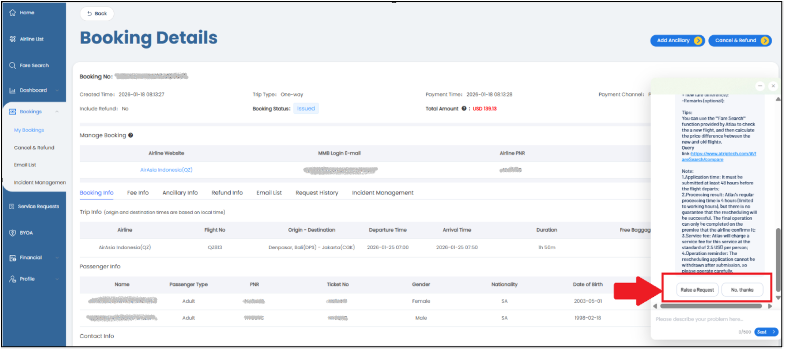
Within ATRIP, the “**Raise a Request**” option **appears in EVA only when the system determines that the issue requires Atlas fulfillment or a live agent intervention**. If the Service Request (SR) creation option does not appear, it usually indicates that the issue can be resolved through self-service functions or general consultation.
**Example: Submitting a Service Request via EVA on the Booking Details Page**
**Step 1: Access the Booking Details Page and Click on EVA**
Log in to ATRIP, locate the relevant order from the order list, and open the Booking Details page. Then, click the EVA icon located at the bottom-right corner of the page to open the dialog window.
**Step 2: Interact with EVA and Select the Issue Category**
Follow EVA’s instructions and select the relevant issue category, for example: \
Existing Booking/Ticket Help → Flight Change → Voluntary Flight Change
Select the appropriate "request category" and add the booking number.
**Step 3: Trigger the Service Request (SR) Creation (Specific Scenarios Only)**
After you submit your request, the system will evaluate your booking details and the information provided. **If it determines that the request requires manual handling by Atlas or when specific business conditions are met, EVA will display a “Raise a Request” button within the conversation**. Click this button to proceed with the submission.
To **complete the process, please follow these steps:**
1. Confirm that the issue requires Atlas fulfillment or live agent intervention
2. Click the “Raise a Request” button as prompted by EVA
3. Follow EVA’s instructions to fill in all required information in the input fields
4. Review the details and confirm the submission
**Step 4: Submit a Service Request (SR)**
Once a Service Request (SR) is successfully submitted, EVA will display a confirmation message, which includes details such as the SR creation status, SR number, and a **direct link to the SR.**
You can click the link to access the Service Request Details Page, where you can **view updates, upload supporting documents, and communicate directly** with a live agent.
#### Service Request Management
**Viewing Submitted Service Requests**
Path: **ATRIP → Service Requests**
Available information includes:
* Service Request status
* Processing progress
* Service Request details and communication history
**Service Request Status Descriptions**
Each Service Request progresses through the following four statuses:
* **New**: Service Request has been successfully submitted and is awaiting an initial response from an Atlas specialist.
* **In Process**: An Atlas specialist has responded and is awaiting further feedback or additional information from you. You may click the Service Request Number to access the details, review the response, and provide the required updates.
* **Processed**: The request has been addressed, and the result is now available. You can click the Service Request Number to review the result. If you have any concerns or objections, you may request reprocessing within the same Service Request.
* **Completed**: Service Request workflow has been fully concluded, and the case is officially closed.
{% hint style="info" %}
Important Note: Please wait until the Service Request status changes to “Completed” before submitting another service request (SR) for the same order.
{% endhint %}