> For the complete documentation index, see [llms.txt](https://resources.atriptech.com/llms.txt). Markdown versions of documentation pages are available by appending `.md` to page URLs; this page is available as [Markdown](https://resources.atriptech.com/popular-topics/post-booking/refund/applying-for-involuntary-refund.md).
# Applying for Involuntary Refund
Involuntary refunds can be initiated via ATRIP.
**Refund Path:**
**ATRIP -> Bookings -> My Bookings -> Booking Details ->Cancel & Refund**

**Refund Process:**
1\. Click the "Cancel & Refund" button.
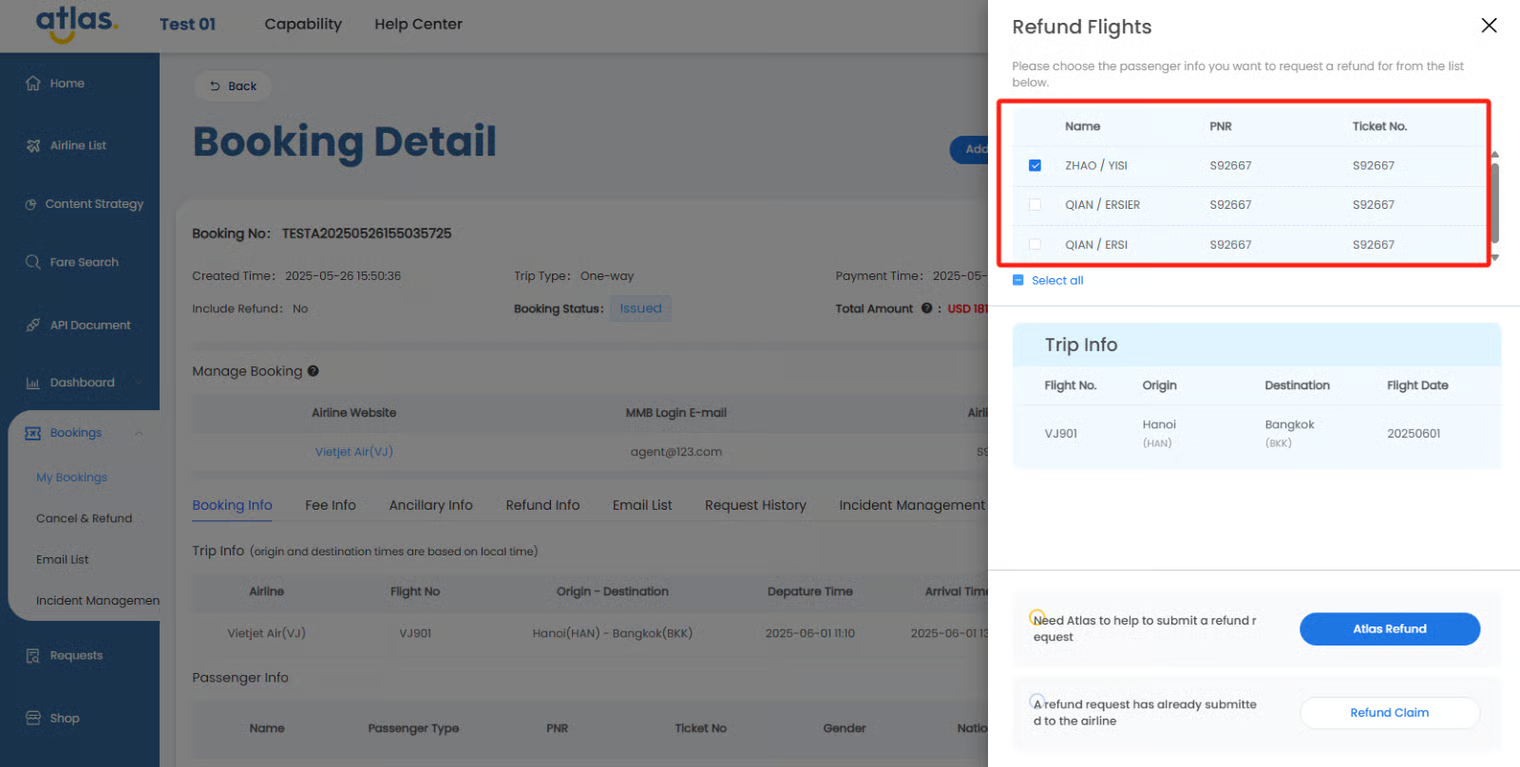
2\. Select the specific passengers you want to refund.
\
3\. Select the refund type.
* If you need Atlas to submit a void request to the airline on your behalf, please click “**Atlas Refund”**, Atlas will provide you with refund service.
* If you or the passenger has submitted a refund request to the airline and has been confirmed by the airline, please click “**Refund Claim”** and Atlas will refund you immediately after receiving the refund from the airline.
{% hint style="warning" %}
Refund Claim does not apply to orders using the VCC Passthrough payment method (identifiable through the payment channel: virtual credit card in the order details). This is because when clients use their own credit card for payment, the information exchange only occurs between the client and the airline, and Atlas is unable to determine the actual refund amount received.
{% endhint %}

4. Submit the refund application.
**1)Atlas Refund:**
Atlas provides two ways of refund, in cash and in vouchers (specifically subject to airline policies). After choosing "**Involuntary Refund**", follow the on-screen instructions to complete the process and confirm the submission of the application.
**Note: Once the refund application is submitted, it cannot be withdrawn. Please proceed with caution.**
* **Cash refund page:**

{% hint style="warning" %}
If Atlas has detected a flight change, there is no need to upload proof. If Atlas has not detected a flight change, proof will be required.
{% endhint %}
* **Voucher refund page:**


**2)Refund Claim:**
According to the page instructions, select "**Involuntary Refund**", fill in the airline fulfillment date, upload the proof of airline confirmation of fulfillment, then click the "confirm" button to submit the refund application.

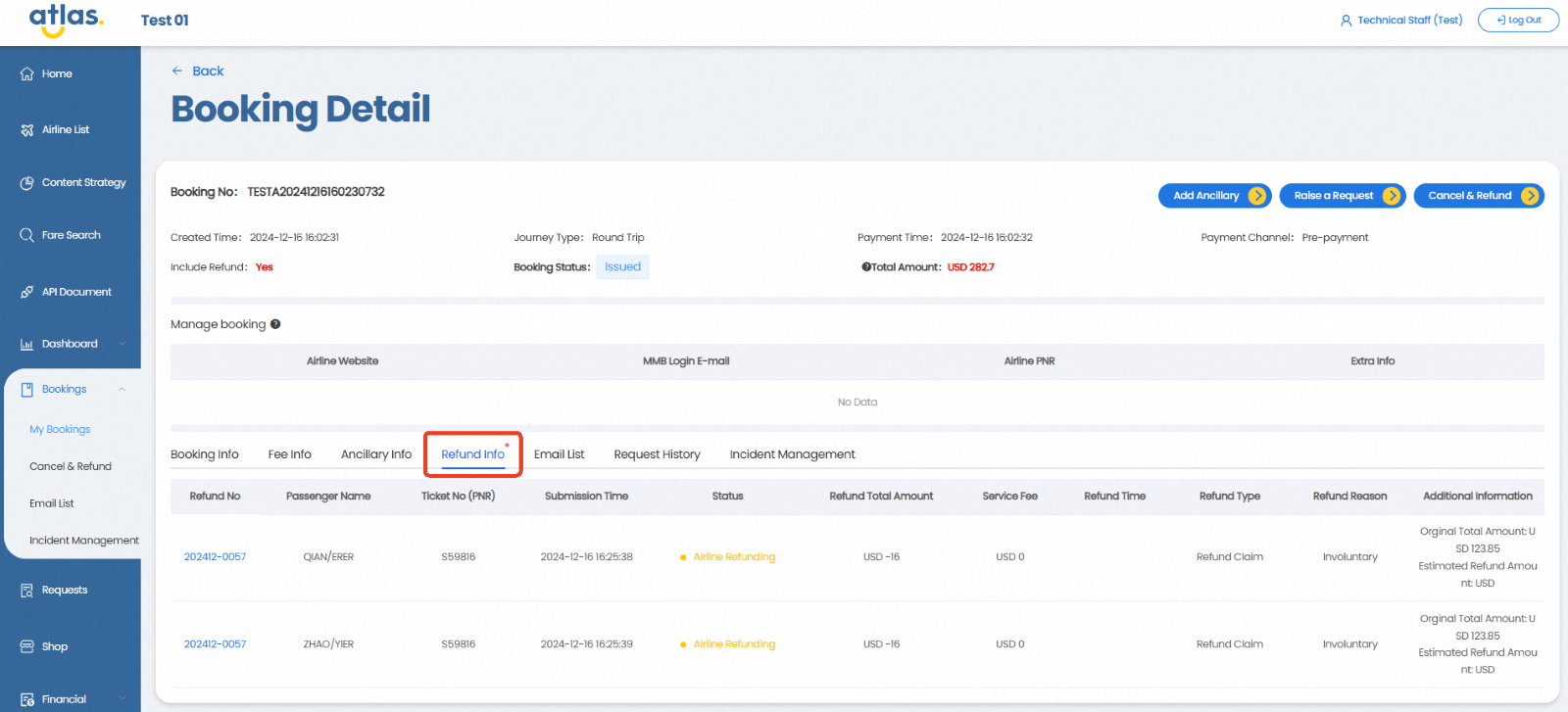
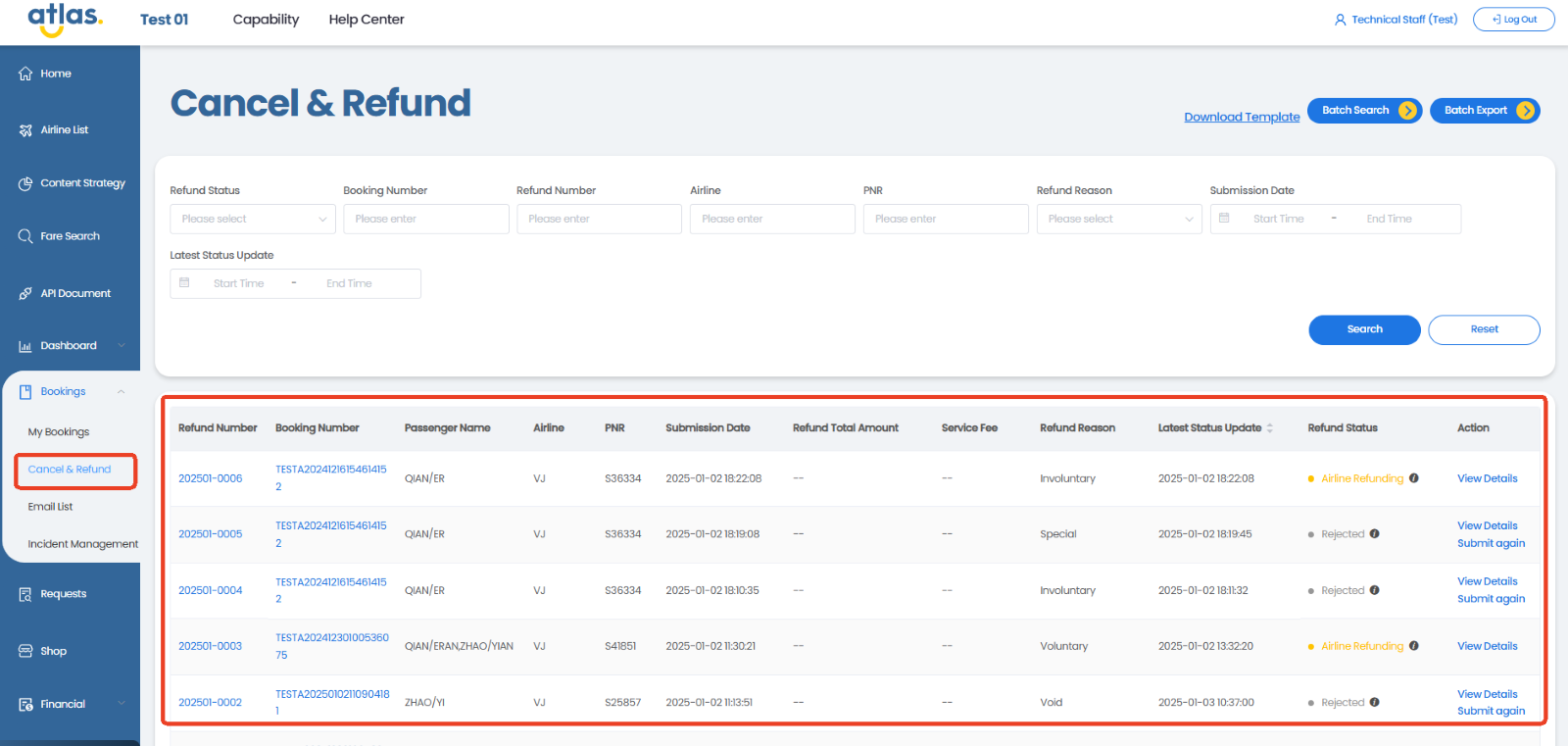
5. After successful submission, Atlas will receive and process your ticket refund request. Additionally, your application record will be displayed on the "Refund Info" and "Cancel & Refund" pages, where you can track the progress of the void request.
* **Refund Info Page:**
* **Cancel & Refund Page:**